Showing posts with label Year 1 Process and Production. Show all posts

Friday, 1 May 2015

Creating a GIF using Adobe Photoshop Timeline and Rotascoping

To create a Timeline on Adobe Photoshop I went on 'Window' toolbar Clicked on Animation and made sure it was enabled with a tick. This enables the frame animation at the bottom of the screen. 
Convert frame animation to timeline
I click on the convert toolbar as shown below to convert the frame animation to a timeline. 

Timeline
I used Adobe Photoshop to create a simple GIF. It was quite a easy 
exercise and took me no longer than 10 minutes as it was the first time of me creating a GIF I was quite impressed.
I did this in my own time and used a YouTube tutorial as my guideline for the basics, to show me how to create a GIF.


First I enabled the animation tool by clicking on Windows and making sure the Animation tool was clicked and displayed in the bottom.

Using simple circle tools I Then created several shapes on different layers to produce my movement. 


The same ball repeated to create movement


I had deleted the background layer to make it transparent as the background layer can cause problems while processing the GIF. I then converted all the layers to create separate frame animations. 


Created a Frame Animation Below
I selected all the layers and adjusted the time span to '0.1' second and put the time loop on 'forever' so it reoccurs and replays like a GIF.  


Ball GIF 
Once I had done this I tried to create another GIF using type to see the effect it gives. Writing my name as a simple start of point I was pleased with the outcome.


Name GIF


to try something more complex I created another GIF using shapes to create a outline of another shape. I think I actually enjoy making GIF's now!


Simple outline of a heart

Adding a faded shape to the background.
After Experimenting with shapes and text I decide to put together a Small GIF recreation of a Game layout. 

Game layers all visible in the Photoshop Timeline.
 I Found this quite simple as I enabled the grey base layer visible on all the layers just having the ball frame change to show movement. Using the exact same Steps as the above previous ones. 


Game Layout GIF


I was actually pleased with the outcome the effect it gave and how it turned out. Being easy and enjoyable to make. 


Thursday, 16 April 2015

Title sequence

For this workshop we was to create a title sequence with some type and some shapes on different layers on Adobe After effects. I choose to do New Visual Language with some random shapes and lines. Using the 3D tool we then enabled the 3D tool for all the layyers adding effects to each layer to create movement. 

The next step was then to insert a background so getting a copyright free texture we then inserted our background adjusting the the layer style and opacity levels. Here I also edited the colour of my type to contrast it with the textured Background. 
We also had to add some effects to the type or the shapes. I adding a emboss effect onto my type to give it a 3D appearance as well as some shadows on both the type and the shapes.

Finally our last process was insert a texture onto a shape which was quite a complex process at first but then was quite easy. 


new visual language (Converted) from Itba Kauser on Vimeo.

Thursday, 9 April 2015

Character Movement

Once again missing this workshop due to being unwell I caught up with this in my own time. Using the software adobe Illustator to create a character which I would be working with to create a short animation. I chose to create a Robot.


My Robot
Using this as my base I pen-tooled every part of the robot onto a seperate layer which would allow me to move each part seperately. Using the 3D tool on Illustator I moved each part in different ways for 10 seconds to produce a small piece of animation. this was quite easy I thought adding movement effects onto each layer adding keyframes to show when they move and stop. The hardest task I found ws how to Import a Illustator file with all the Robot parts on seperate layers, I once again used a youtube tutorial for this which I found very Helpful. I was thinking of maybe to develop this further to add a funky tune in the background to show the robot's dancing.


character movement from Itba Kauser on Vimeo.

Thursday, 19 March 2015

Typography


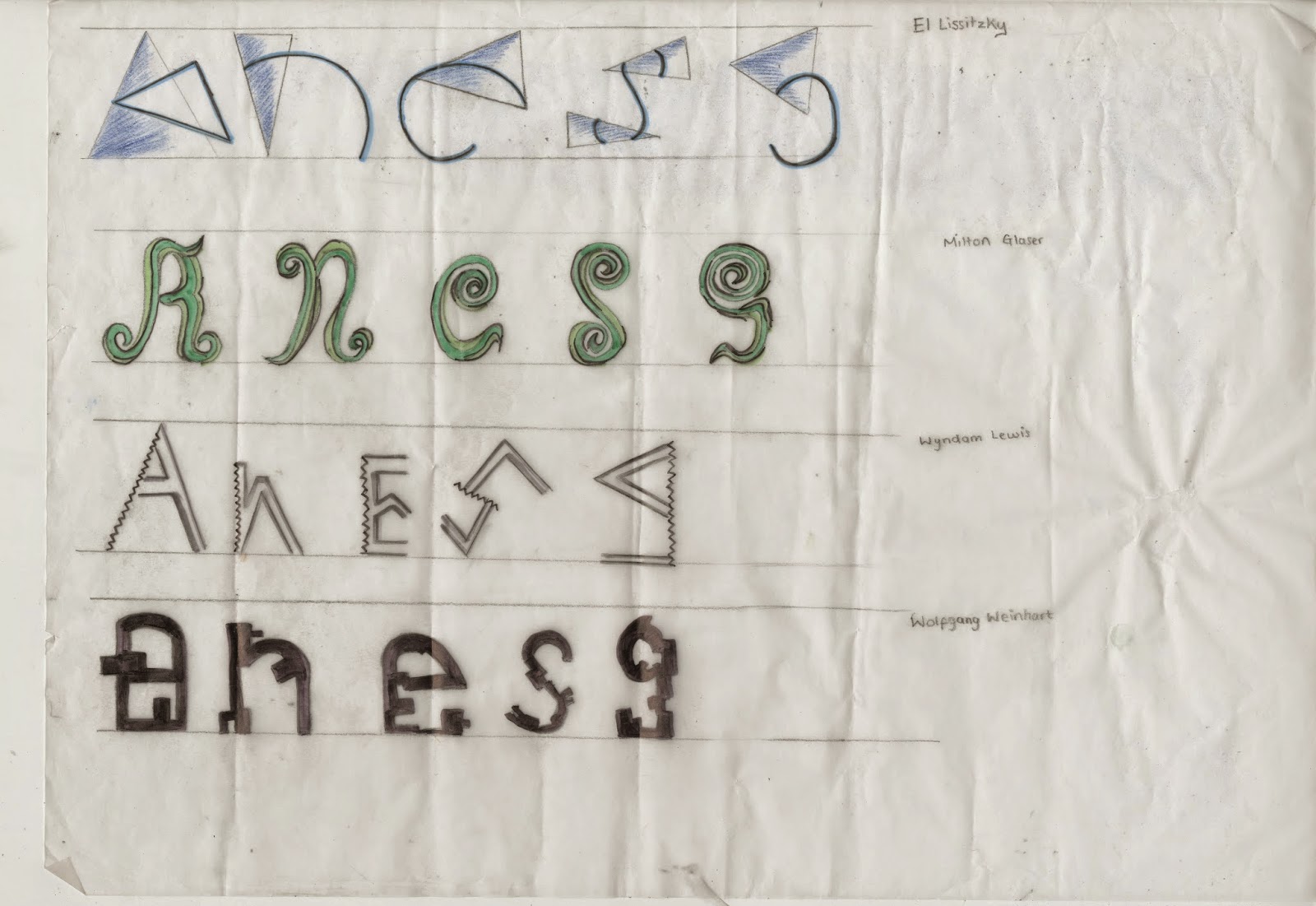
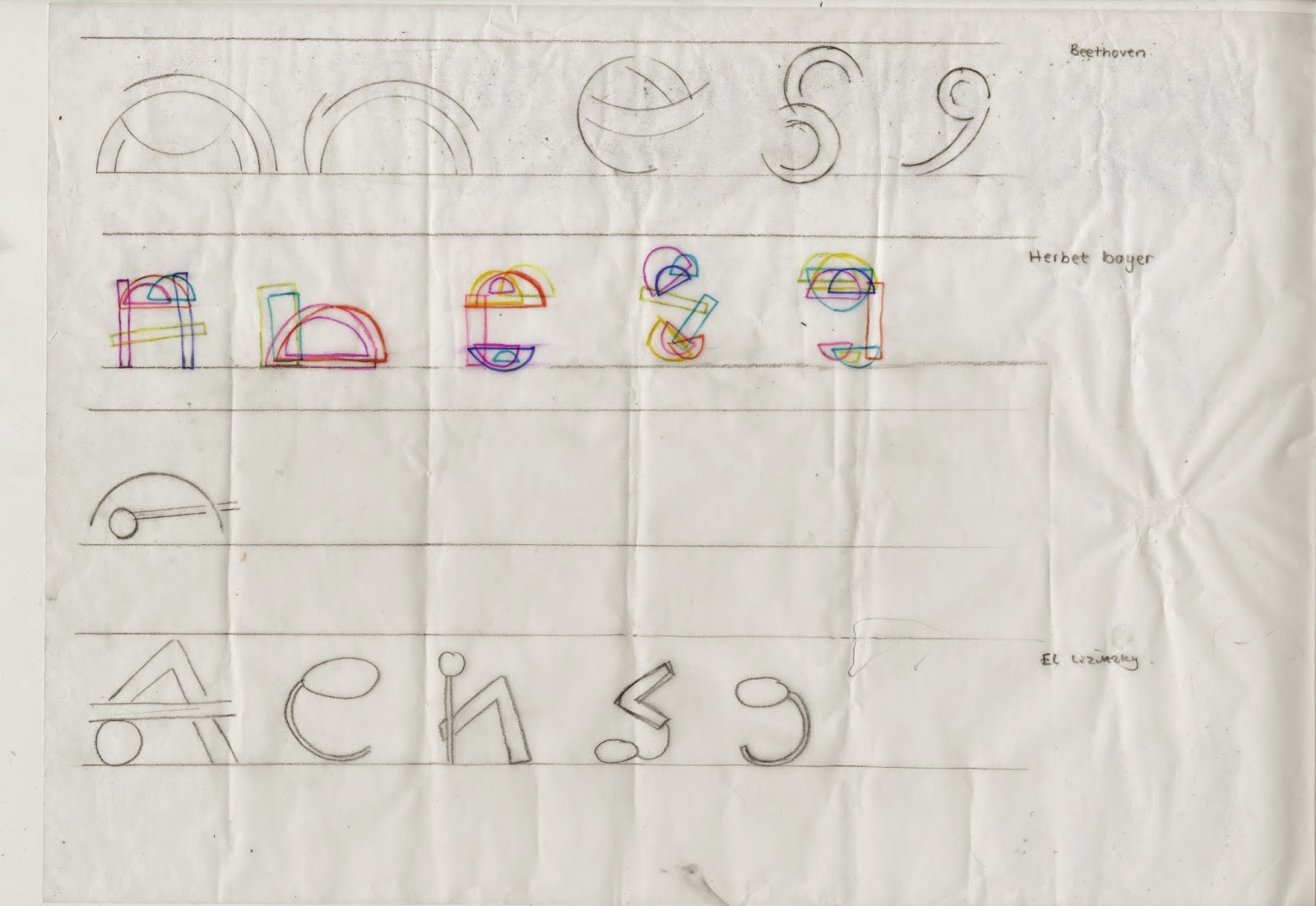
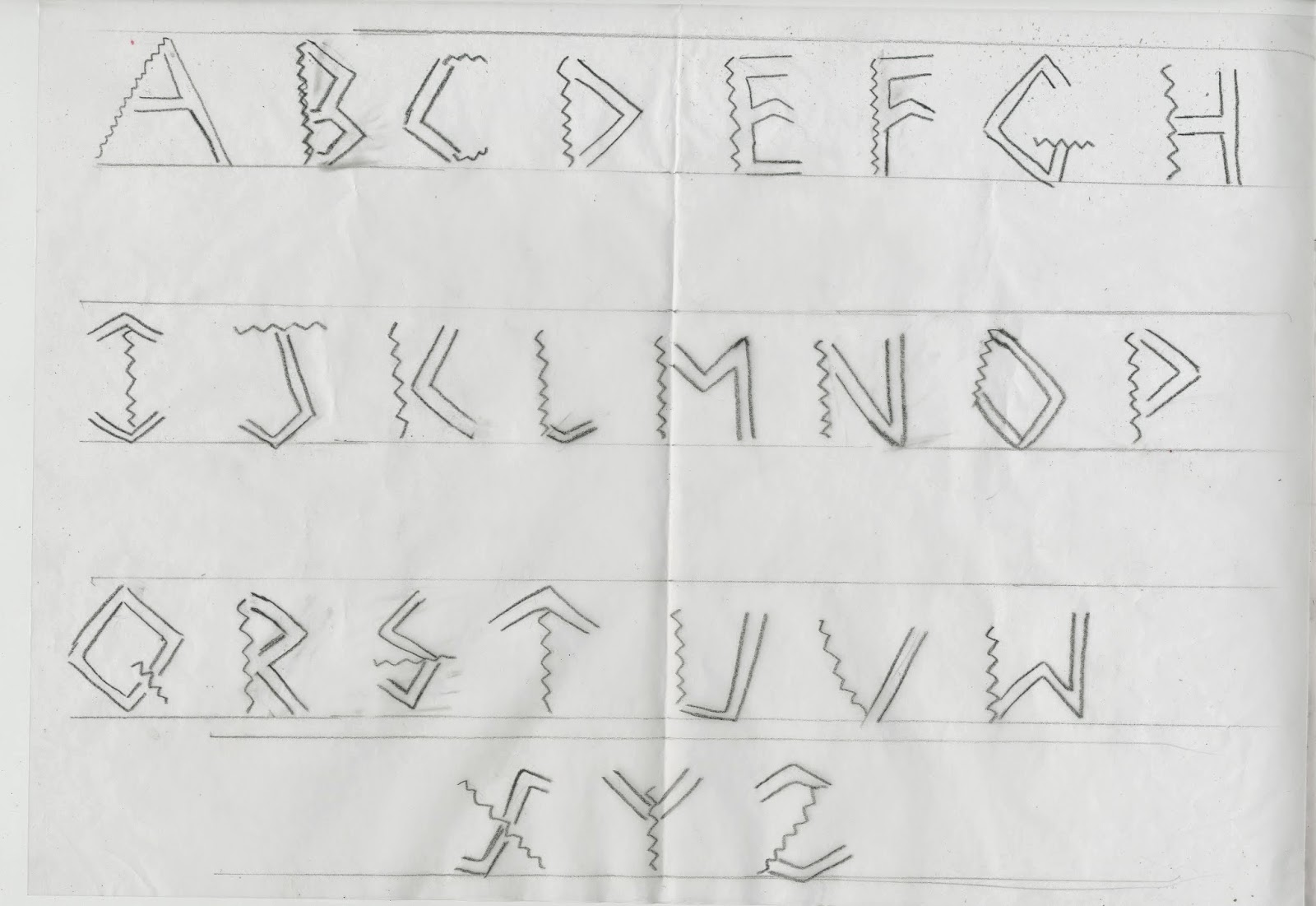
This is one small brief I actually have enjoyed to create our own Font. We was asked to look at different artists work as inspiration and from their work to look at the shapes and patterns which we were then to form the letters A,N,E,S,G. using these. The reason we has to start of with these specific letters was to see if they would work well enough to create the whole alphabet. I started using different mediums, materials and techniques to create my experiments e,g, compass to get a perfect round, rulers for the straight lines, I used fine liners and watercolors to create shadows of light and dark. I used different artist's work to get a mixed outcome with my experimentation's, as I then had a variety of shapes and materials to be working from. 

Experimentation sheet 1

Experimentation sheet 2

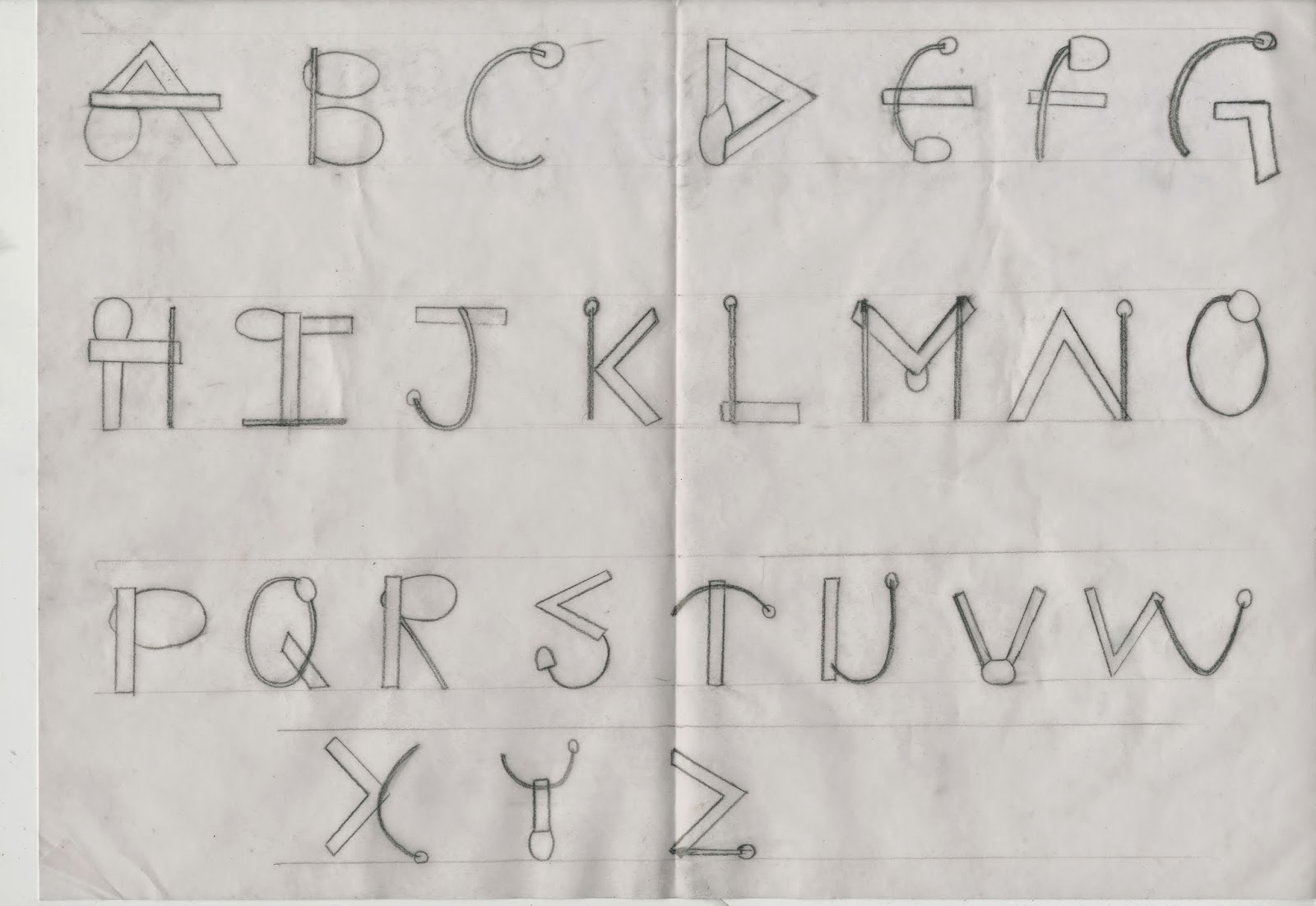
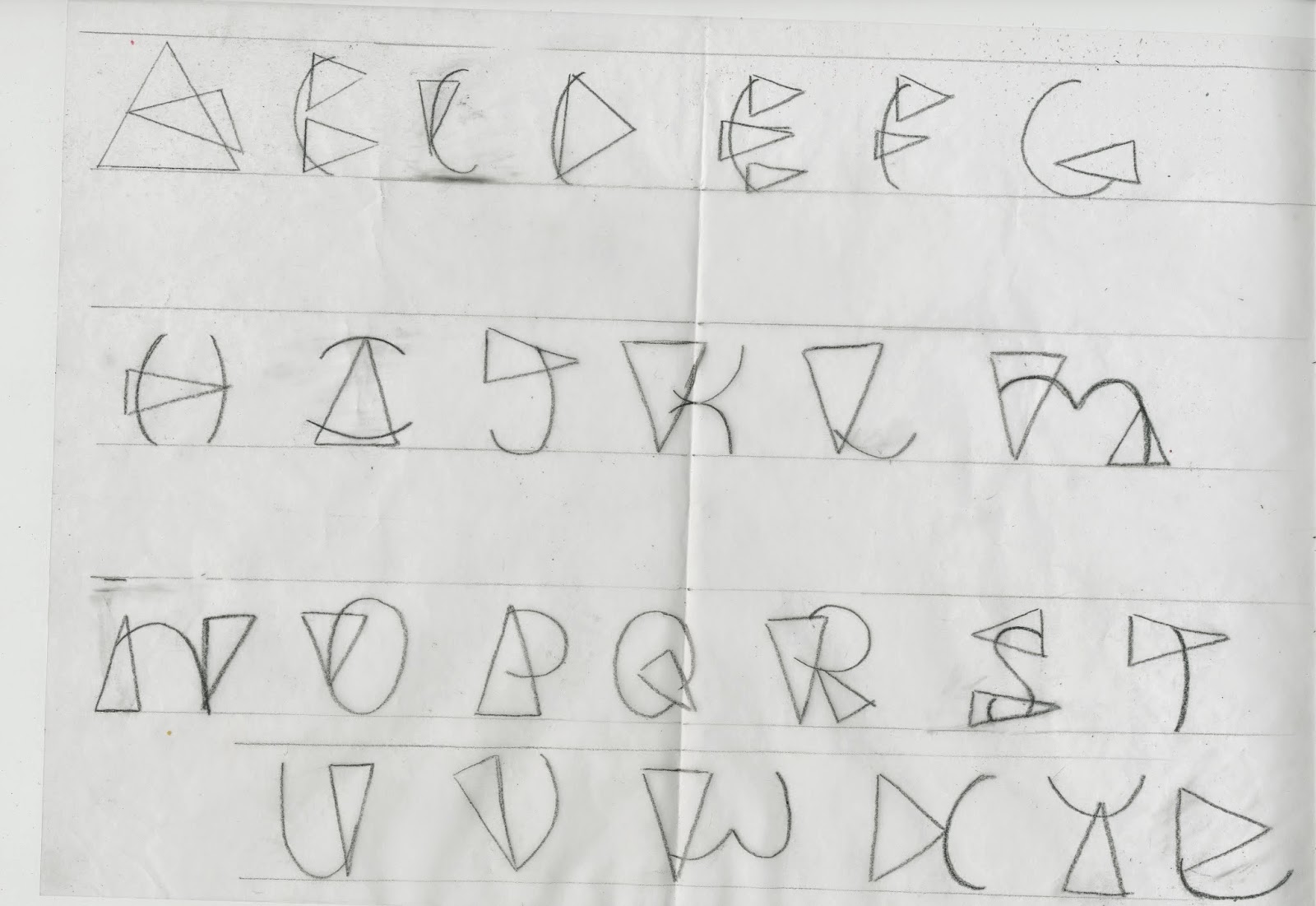
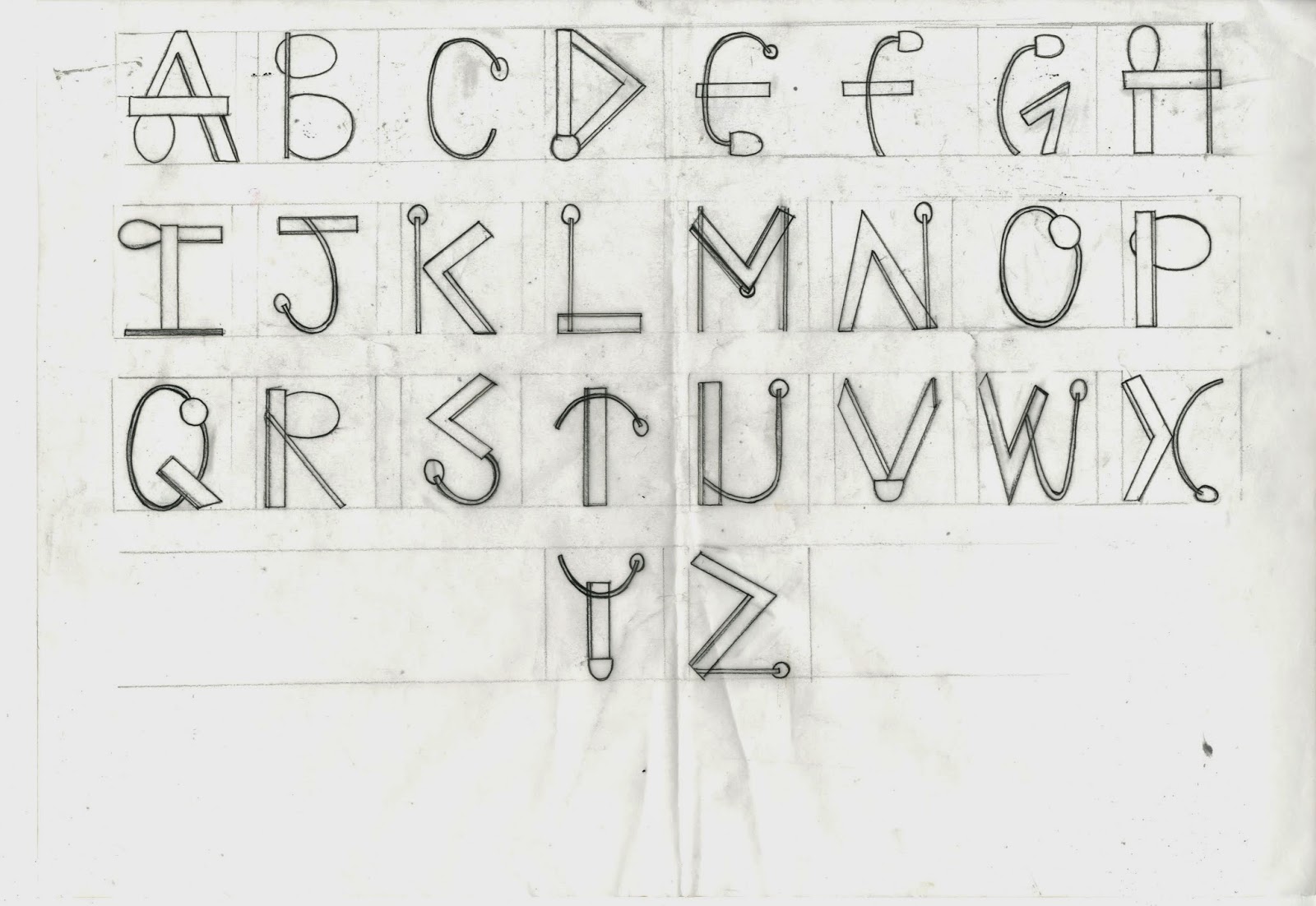
After creating an array of experiments of which I was happy enough to work with my next step was to create 3 full alphabets from these experiments. I choose my 3 favorite's 2 inspired by El Lissitzky and one by Wyndom Lewis. 

El Lissitzky Inspired Type Font

El Lissitzky Inspired Type Font

Wyndom Lewis Inspired Type font
Once I had completed all 3 type fonts I had then choose which I felt was the best one and my main favorite which was inspired by El Lissizky's work.


 This image above is what inspired my type font. Using the different shapes and curves I merged them both together within each letter, using the thin lines as well as the thin. I also used the aspects of the curvy lines as well as the straight. Inserting the similar shapes into my font with the use of the circles.
  
Final Type
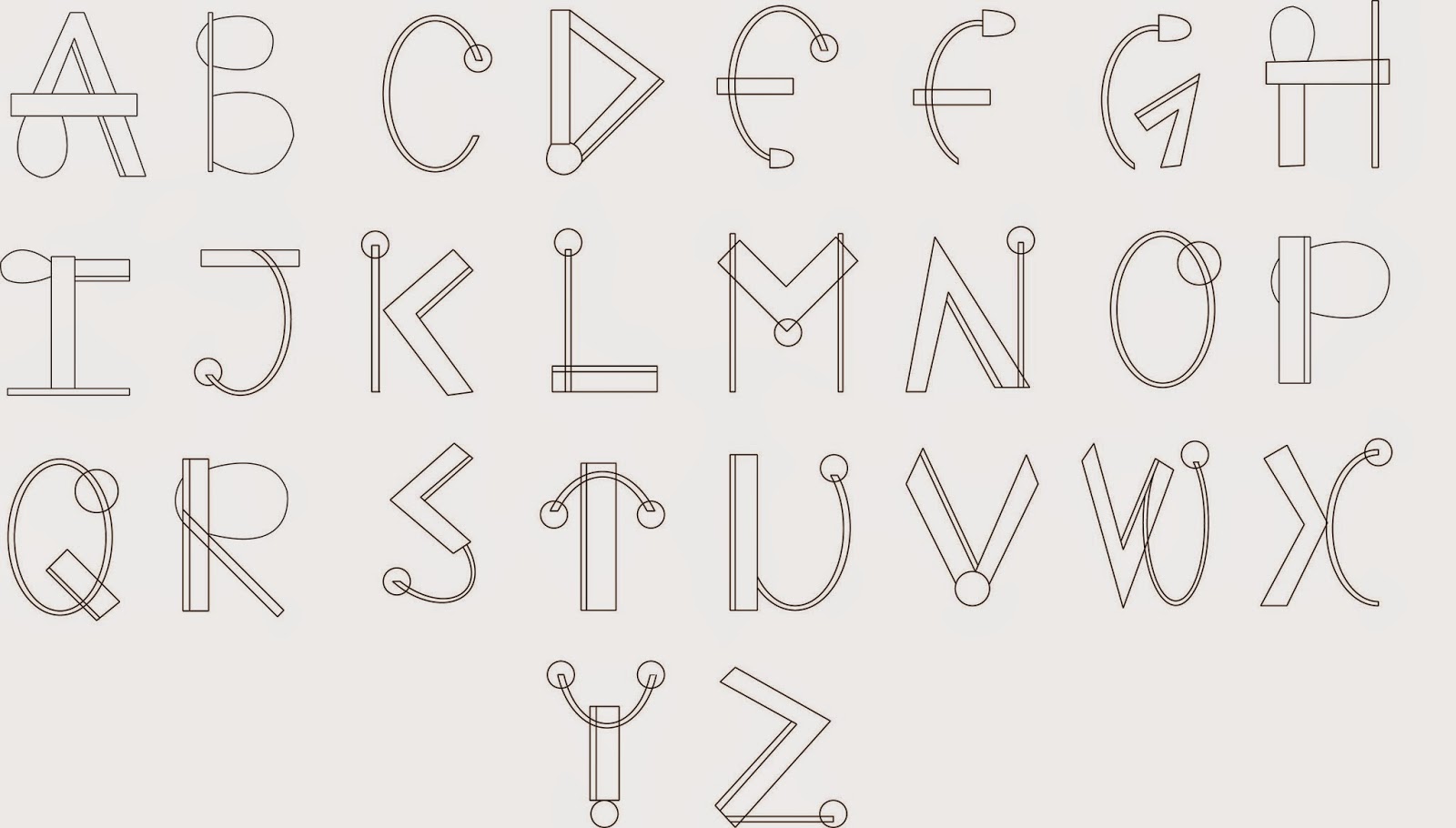
Once choosing which design I decided to have as my final I once again drew a sketch of the whole alphabet in the same type font but much more precisely using a ruler and going over the final in black fine-liner.Boxing out each letter making them the same size.

Final digital Type
The next step after I finalized my type font I scanned in the sheet and using Adobe Illustrator I drew out each letter using the pen tool and the line tool. To create the perfect circles I also used the ellipse tool. This gave me a smart and neat look to my finished type. Using Illustrator In the process and production classes have helped me a lot in understand and using the software which I now find better and much more easier to use than pen-tooling on Photoshop.

Thursday, 12 March 2015

Kinectic Typography

As part of the after effect workshop I missed kinectic typography due to the weather stopping me to travel. So I caught up on this at home in my own time. And I feel I have done quite a good job. I used the help ofYoutube tutorials to enable sound whilst editing. As I had recently watched fast and furious 7 the song It's been a long day was in my head so i decided to do kinectic typography besed on the first line for this. So I downloded the audio track from a copyright free source I had found and imported just the first line into Adobe after effects. Matvhing the words to the exact time sequence was quite hard and very time consuming . Using the different effect to create the words flying in from all over the screen I feel I did pretty well as a final outcome which I am actually pleased with.


Kinetic Typography from Itba Kauser on Vimeo.

Saturday, 28 February 2015

InDesign Typesetting

In this Production workshop we was taught all the basics to the different terminology related to typesetting within In-design, which tools to use for what and how to fix any related problems.

Kerning - is adjusting the Space between the characters


The Kerning tool in Adobe In-Design (which adjusts the space between characters in a whole word). 
Tracking - is the process of tightening or loosing a block of text.


Kerning tool In Adobe In-Design (used to tighten or loose a block of words)

Leading - Is the process of adjusting the vertical space between lines of type. 

Image result for leading tool indesign
Leading tool in In-Design (adjust the space vertically between lines)

Widows - Are the words at the end or at the beginning of a line that are separated from the rest of the text. This separates a word leaving the first part of the line on the first line and the second part of the word on the line below.

Example of a Widow.
Orphans - Are a few words or maybe a word it's own row in a paragraph creating too much white space between paragraphs.

Example of a Orphan.

How To prevent Widows and orphans?

One way to prevent orphans is to use Kerning and Leading to adjust the spaces between the type to either tighten the words and space or to loosen them. this will then adjust the scale and spacing of the words being able to remove and words that cut onto two different lines.
You can use this technique for widows to but also use tracking to tighten the spaces so you could fit more words on to a line.

Another way which could prevent Widows and Orphans is if you edit the composition of the text to 'Justified alignment'. 


Justify Tool


Thursday, 12 February 2015

The Rocket & Pear

The Rocket


Developing more of our knowledge on Adobe Illustator we Created a rocket vector from 5 simple tools. Following simple process and instuctions I was able to Create a Rocket which I experimented the colour. the pattern stroke and the shadow. 

My final Outcome of the rocket

 I also added a gradient circle in the middle of my rocket to give the perception of a window and ligh reflection upon it. Addjusting the saturation levels to create a brighter more intense colour rocket.

The Pear

For the second part of the workshop we pen-tooled the shape of a pear in Illustrator, using the mesh tool to create a visual image of the pear itself. This part of the process was slightly time consuming as the levels of the shadows had to be more or less precise to gain a visual representaion of the pear. We then added ontop of it a copyright free texture from the internet to give it a more life-like appearance and resemblance to a actual image of a pear.

My final Outcome of the Pear
I really love how the final image of the pear turned out as with the textures it creates different layers for the pear looking 3-Dimensional rather than a simple one layer pen-tool. It gives the pear a much more detailed appearance making it seem like a photograph rather than a pentooled drawing.

Thursday, 29 January 2015

Working with Text Layout


The aim of this exercise was to be able to adjust the type layouts for the appropriate formats. Working with a leaflet design, we were shows and taught how to correctly insert text in using the correct formatting tools. To split the page into 3 columns where the main body of text would be placed.

For Paragraph Style

  1. Paragraph styles
  2. Click on New Paragraph styles
  3. Change the Name
  4. Basic Character Formats
  5. Change font/Size
  6. Leading to - 11.4pt
  7. Indent Spacing (often 4mm)
  8. Left Justify
  9. Apply Syle
  10. Edit -
  11. Select all
  12. click on the body text
  13. Edit-
  14. Click control
  15. Click on the subheading
  16. Type name.      

We also were taught how to format a contents page properly so if the pages changed the numbers would be updated themselve without us having to re-enter them. 


  1. New paragraph style
  2. Base on (Subheading type)
  3. Layout -
  4. Table of contents
  5. Style - TOC
  6. (Other style)
  7. Click on subheading
  8. Add
  9. Entry style
  10. Newpage
  11. Add tabs to line up with p.s options
  12. Tabs
  13. Leader- .
  14. Right justified tab (89)
  15. Update table of contents
(Apply tabs instead of dots, press tab if nothing works right click on the text tool - Type - Tabs).
Contents page.


Saturday, 29 November 2014

Thumbnail Visuals

After the story board and mood boards I then started to create some thumbnail visuals using the Grid system as a guide to create the layout for my story type. 
The boxes with the cross and clear  boxes represent a Image, lines in columns following the grid system representing text.

Thumbnail Visuals
Using this method I feel allows to develop and experiment with the different possible layout outcomes. It makes it easier to set out the composition of the spread.  

Once we did small thumbnail visuals I choose for out of these and created 4 larger Thumbnails A3 size. Still using the grid system I used actual type from my story cut them up in pieces matching the size of the column grid to create a well structured composition of the type.   


Thumbnail Visual 1

Thumbnail Visual 2

Thumbnail 3

Thumbnail 4
I used different fonts and sizes to create different compositions using the grid system as a structure which I worked on top to create columns for my text,  

Thursday, 20 November 2014

Adobe After Effects

Process and Production - Adobe After effects

Task 1 - Short Horror Clip

To my first draft of the clip I used that to work with to add effects over the Images downloading copyright free effects from cute stock footage.com and downloaded 2 effects which I overlaid on top of each other. A circle bubble effect and a horror grunge effect which creates the horror theme to my mini clip, also i added layer effects playing about with the opacity to get the effect i wanted to create. To overlap the images to create a smooth transition between the changing of the images I adjusted the opacity of images as well as adding key frames. Found this really helpful and loved the final short clip. (Shown Below)


Final after effects clip from Itba Kauser on Vimeo.

Thursday, 6 November 2014

Adobe Illustration

Adobe Illustration

In our First Adobe Illustration session after getting a brief introduction to the software and it's tools. Using the pen tool to draw around each facial feature a layer at a time starting from the face, then hair using simple fill in tools to colour in the pen-tooled areas. Using the circle tools to create the eye with a small pen tool line adding a brush stroke effect to create the eyelashes duplicated the eye and flipped it for a symmetrical eye. Working on the lips using different layers for he red lips the out line the inner colour the teeth and shine. Using the simple curvy pen -tool line adding strokes on the brush effect for the individual hair lines I actually really liked what I came up with.
 
Before using Adobe Illustator for pen -tool previously I had always used Adobe Photoshop. Using the both now I find Illustrator much easier and straight forward, as for illustator you create new paths and layers each time have to make selections and is quite complicated and technical.

Below are a few pieces of work I created in Adobe Photoshop.

My first attempt of using Pen tool in Adobe Illustrator I Pen-tooled a pair of googles going with something simple and quite easy to become familiar with the process.
Getting more complex with detail I then pen-tooled a Avatar.
Much more complex and paying attention to detail for My As Level Graphics. I created a Character from scratch using photography and building upon that inspired by Terminator and Medusa along with abit of Anime. This was my end result which took a long time to get all the deatils in the right places.


Thursday, 30 October 2014

Adobe After Effects

Process and Production - Adobe After effects

Task 1 - Short Horror Clip

For our first Adobe after effects session we used 10 images which had to be opened as a film and documentary file on Photoshop at the size HDTV 1080p/29.97 save it as a jpeg in the project assets folder. After my images were in line I then found a short backing track to play alongside with my images, I tried to find something with a beat so my images could change as the beat drops to which I then had to add more pictures to match the beat. I used a copyright free soundtrack from royalty free music.


short after effects movie from Itba Kauser on Vimeo.

Thursday, 23 October 2014

Writing a Narrative

Process and Production  - Writing a Narrative

Task 2

For futher development of our our second task was to create moodboards where we can visualise imagery from our short stories/narratives. For example the characters or people, the settings and the feelings and moods based within the narratives.


Character Moodboard - Using images of pigeons flying on China's National Day as well as images of pigeons with bombs and in gadgets to set a visual image of what the chaacters in my story would look like.

Thursday, 16 October 2014

Adobe Photoshop

Process and Production  - Adobe Photoshop

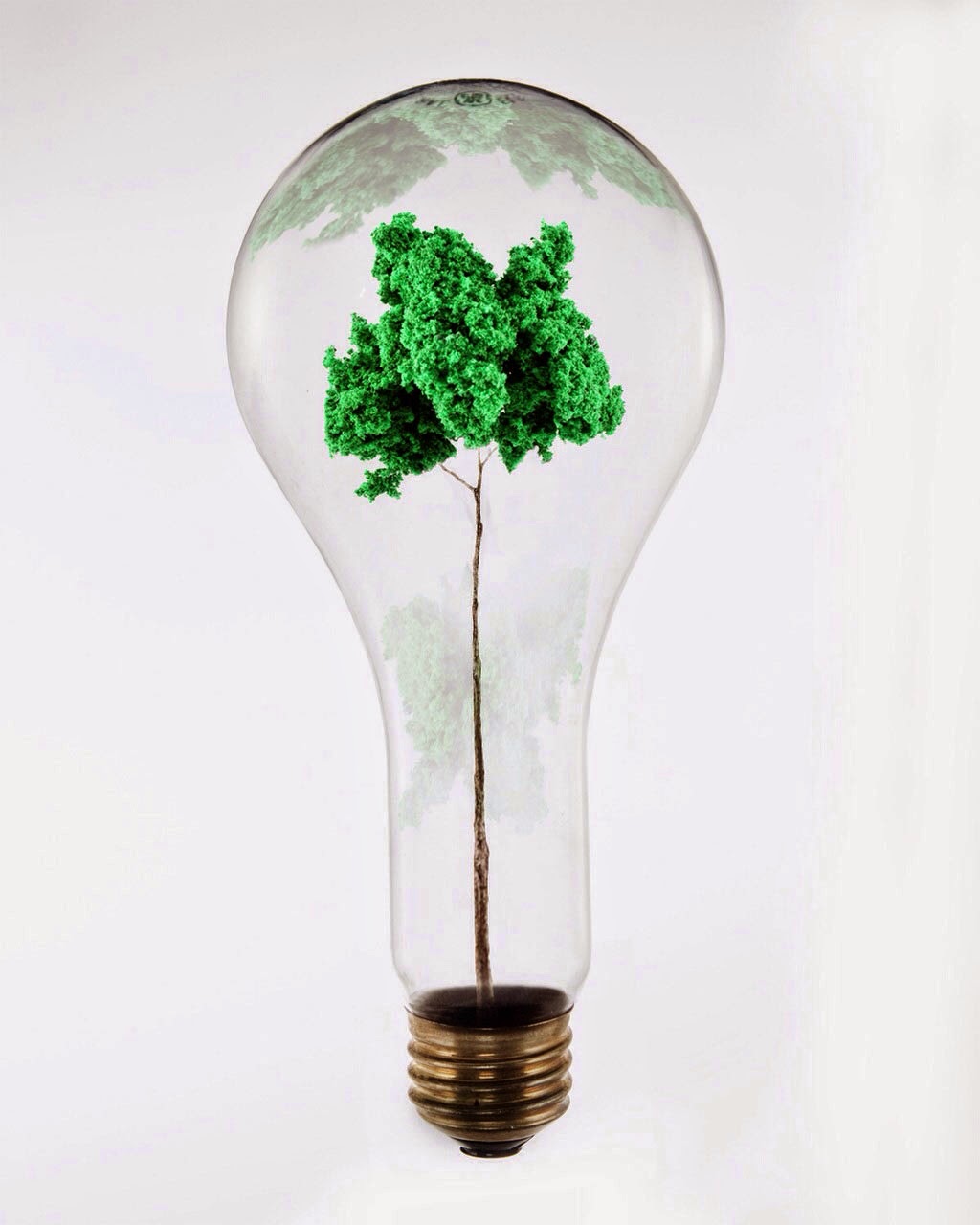
Task 1 - The lightbulb

Our first session using adobe photoshop after a little introduction to how the software works and its basics we had a small task to do which would help our skills develop much better. As I've used this software previously I had some experience of using the different tools.

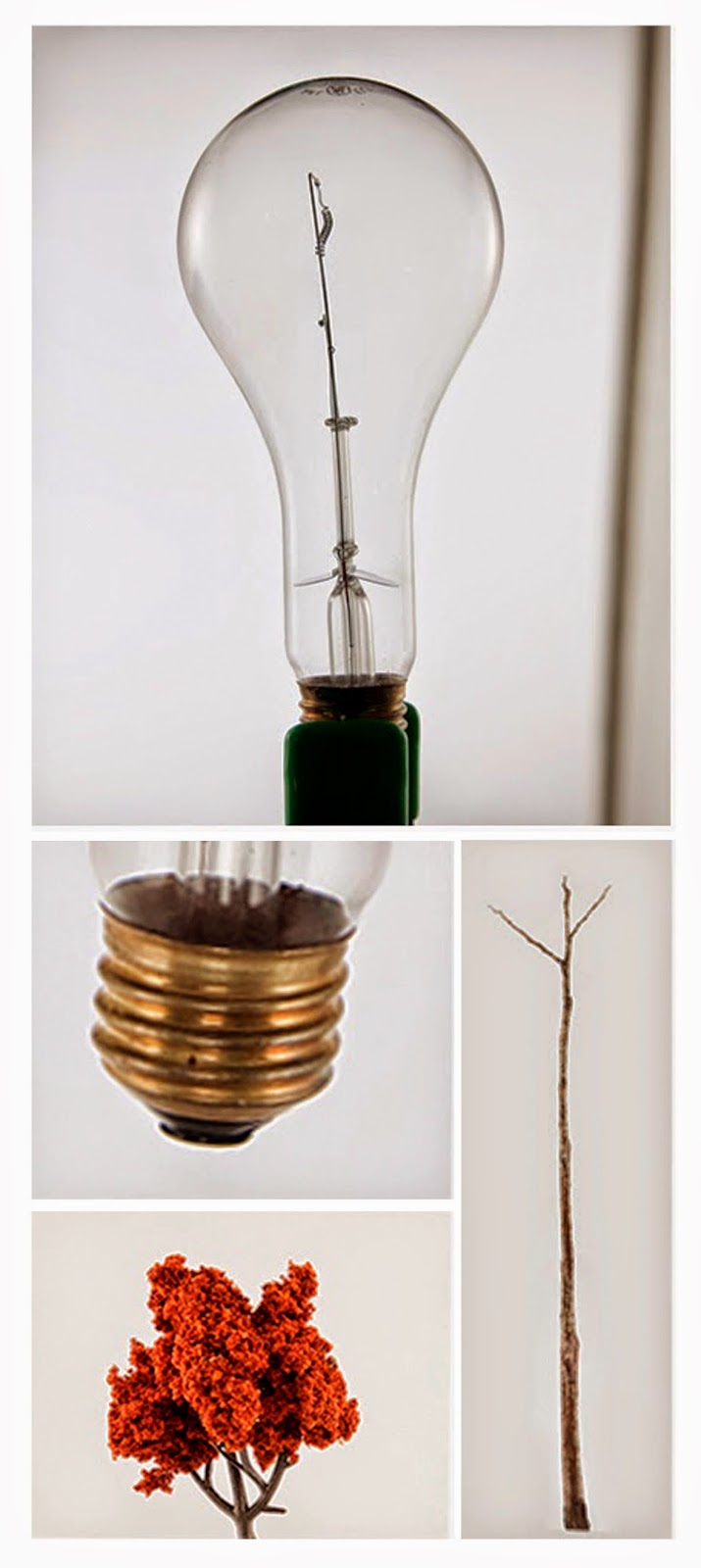
To start of with we were given 4 images which we were then to image maniupulate them to create a new image.
Images before editing

  Starting with the main lighbulb image we placed the gold screw image towards the bottom using the basic transform tool to rotate and rescale the image to gain the appropriate angle and perspective. The next step we did was use the patch-up tool to eliminate aspects of the background we didnt want and to give the image a clean look.after this we added the twing in the middle again using the transform tools to get the right propotions and to place it into the right place, to which we added the tree on top of the twig. We then added layer masks and changed the hue and saturation levels of the tree to get a bright green environmental colour and to enhance the olour quality. We duplicated this layer twice faded the opacity and manipulated the shape of the image warping it to create reflections on the lightbulb below and on top of the clear image of the tree. Below is a image of my final outcome.
My final outcome
 

Thursday, 9 October 2014


Manchester Christmas advert 2014 from Kilogramme on Vimeo.

A festive small animation clip I liked specifically on my city i chose Manchester. It shows the different activities and places available which can help me in able to do further research. I love the technique of the moving images to show the different locations and atmospheres around the city it brings a friendly, exciting and adventurous atmosphere to the animation.

State of Flux from Matt Scott on Vimeo.

First session of After effects we were told to create a Vimeo account and were given our brief to create a short 10 second clip at the end of two sessions. As research and inspiration as well as trying to get familiar with Vimeo I searched up City in flux and saw this which I was inspired by. This Inspired me with the idea of photography, light painting to show movement and life. 

Thursday, 2 October 2014

Writing a Narrative

Process and Production - Writing a Narrative

Task 1

In our first Physical Studio practical we was  given a task in choosing 2/3 newspaper articles. Using these articles, any personal experiences or external influences, we were to create our own short story or narrative. This task was set to give us a chance to start thinking much more creatively, as a graphic designer to create interesting ideas we need to be able to have a creative mindset which this task achieves. But also this task was to help understand the concept of copyright how copying existing work directly isn't acceptable using existing work for ideas, inspiration and influences is on the other hand acceptable. 

Image of my Articles and Ideas
Using 2 articles on a serious topic about terrorists, bombs and threats to the public I knew this was a rather controversial topic to which I decided to take a comedy approach towards it. So brainstorming ideas I came across as writing my short story from the perspective of the Pigeon as being a Cia agent working during the release of the pigeons on China's National Day. Using influnences from a well known secret Agent James Bond I named my Secret Pigeon agent James Bird, to add hints of banter and comedy within my narrative. Develpoing my ideas futher below is the short Narrative I came up with.

Terrorist In Feathers

The Name Is Bird, James Bird secret agent of the CIAPD (Pigeon Department). For my whole life I have waited to carry out the biggest task of my life 5 years of training and today the day arrives today's China's National Day. My day to finally make History.                                                                                                                                                                                                                                                                                              Today hundsands hun? hundree? hundrounds? hundeads? ahh hundreds oh feathers, never was good with my science. So as I was saying today hundreds of pigeons are to be released to celebrate China's National day and this my feathered fans is where my duty flies in. To fly over the great wall of China dive down 100ft find the treacherous pigeon beat him black and blue until every feather on his body is broken find the man behind all of this save China and become a hero! *Panting* WOW that's a mouthful god damn if only that was true! No but seriously working top secret undercover and searching pigeons butts for butt bombs now that's a heroic act! For feathers sake whom I kidding let's just get this over with.  
                                                                                                                                                         James bird Badge number 007 reporting for duty sir! Checking pigeons 1's butthole ufff holy godfeather you should be jailed for that what a hazardous chemical this is a butt bomb itself some nasty piece of shhhhhhhh *Looks up* mmmMamaaa Mia that is one fire cracking beauty! Never in my life have I seen a pigeon with perfect white feathers, long sharp wild claws I think I'm in Love!       
                                                                                                                                                                                                             My time to shine chest out head high deep breath, macho time baby."Well hello there, why I must say your one foxy-feathered lady, like my muscles? I call them bob and bob" *winks* She giggled clearly means she loves me too I can feel it we have a connection. "I didn't mention my name did I I'm Bird James Bird and you are?" "Not interested" she said. Huh not interested? ahh I get it she's playing hard to get no problem "Beautiful name just like your eyes so dreamy, so you free after the release maybe we can erm go for a little fly you know like a date in the deep blue sky, between the fluffy clouds you and me ahh how romanti.." interrupting me she said "Mister keep your claws to the ground never going to happen" and walks away. "Oooh Feisty feathers you have I like".                                                                                                                                                                                          So I follow her not going to let you get out of my eyes hmm I'm thinking a nice cloud wedding and oh holy feathers it's time to take off and I haven't checked all the butts! But I can't leave her just like that so I run to her and say "Excuse me hot feathers any way I can give you a bird call" and at that moment the pigeons were released for the big take off. Taking an emergency shoot off I fly super high and fast yeah Bird! Past all the pigeons annoyingly blocking my way and reach out to my hot feathers and got my claw hooked on her feathers what a grab!                                                                                                                                                                                                              But... wait for it my claw hooked onto something and as I looked carefully I see... I see... once more for effect, I see... the enemy butt bomb coming out her BUTT! She broke my heart enemy as hot as her she's blown me up without a bomb. Looks are deceiving my feathered fans so beware, her beauty was her biggest weapon how unfair why does the enemy got to be so hot God feather this isn't fair! Pulled the bomb out her butt I did, oh my so many buttons but my worst nightmare this is in Spanish! Oh no what to do what to do in training they cut the red wire but there's no wire here but a red button I'll just press this maybe I'll work. *Presses red Button which activates the bomb* What's these symbols *turns the bomb other way around*  holy feather this isn't Spanish it's English and I've just activated the goddamn bomb what 10 seconds left! OOPS! "Bomb explodes*
   BAAAAAAAAAAAMMMMMMMMM!!!!!